
Quick Reference Guide for Shortcode Usage
OVERVIEW - Shortcodes
To properly utilize shortcodes in WordPress, there are three (3) key components that must be configured. These elements work together to dynamically display content such as user forms, event listings, and custom modules across your website without manual coding. Shortcodes act as connectors between plugins and your pages, allowing features from tools like Ultimate Member and Event Manager Pro to be embedded seamlessly. Using Elementor’s shortcode widget, you can easily place and manage these elements within your page layouts for a consistent and flexible design.
(6A) Ultimate Member Shortcodes
1 - Core Pages & Forms
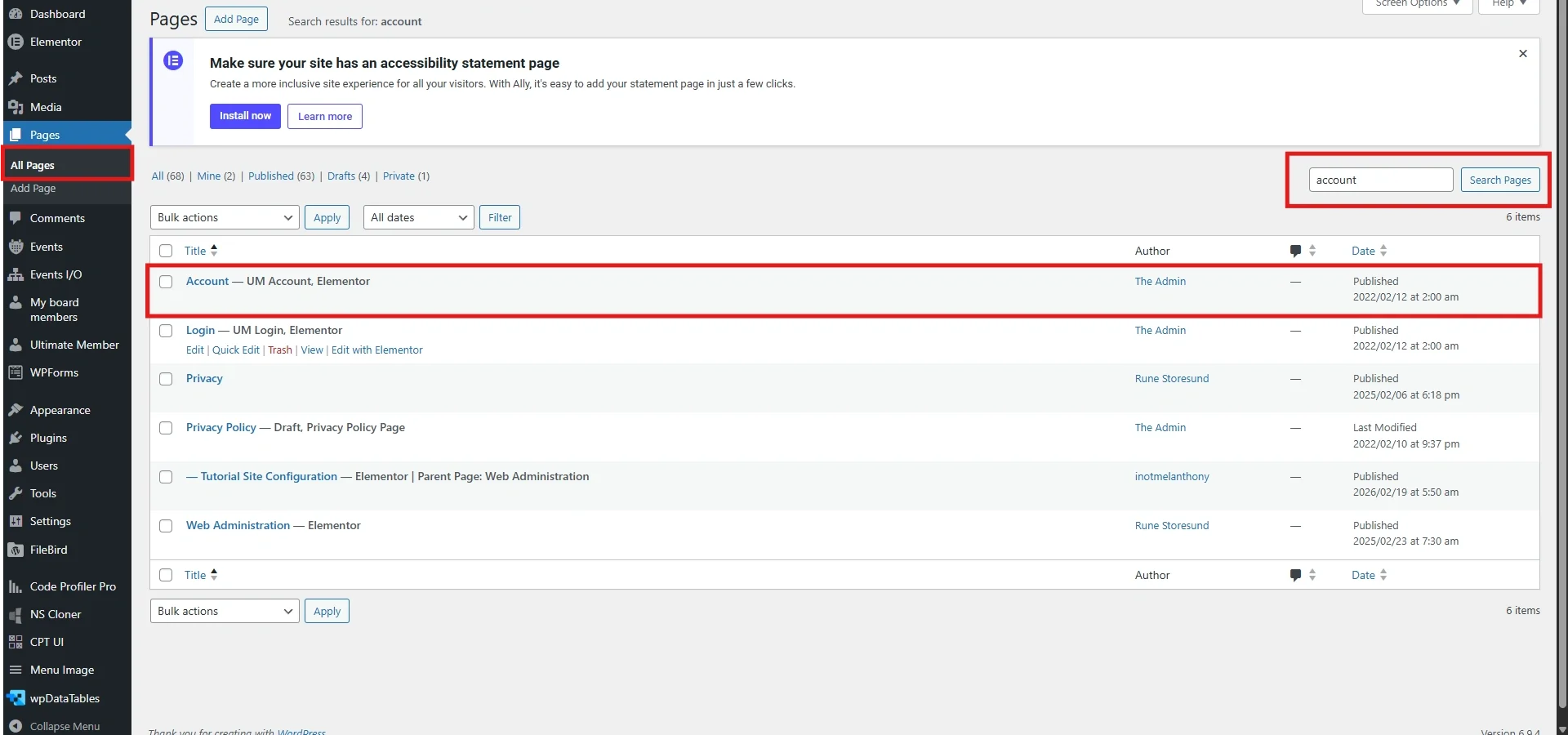
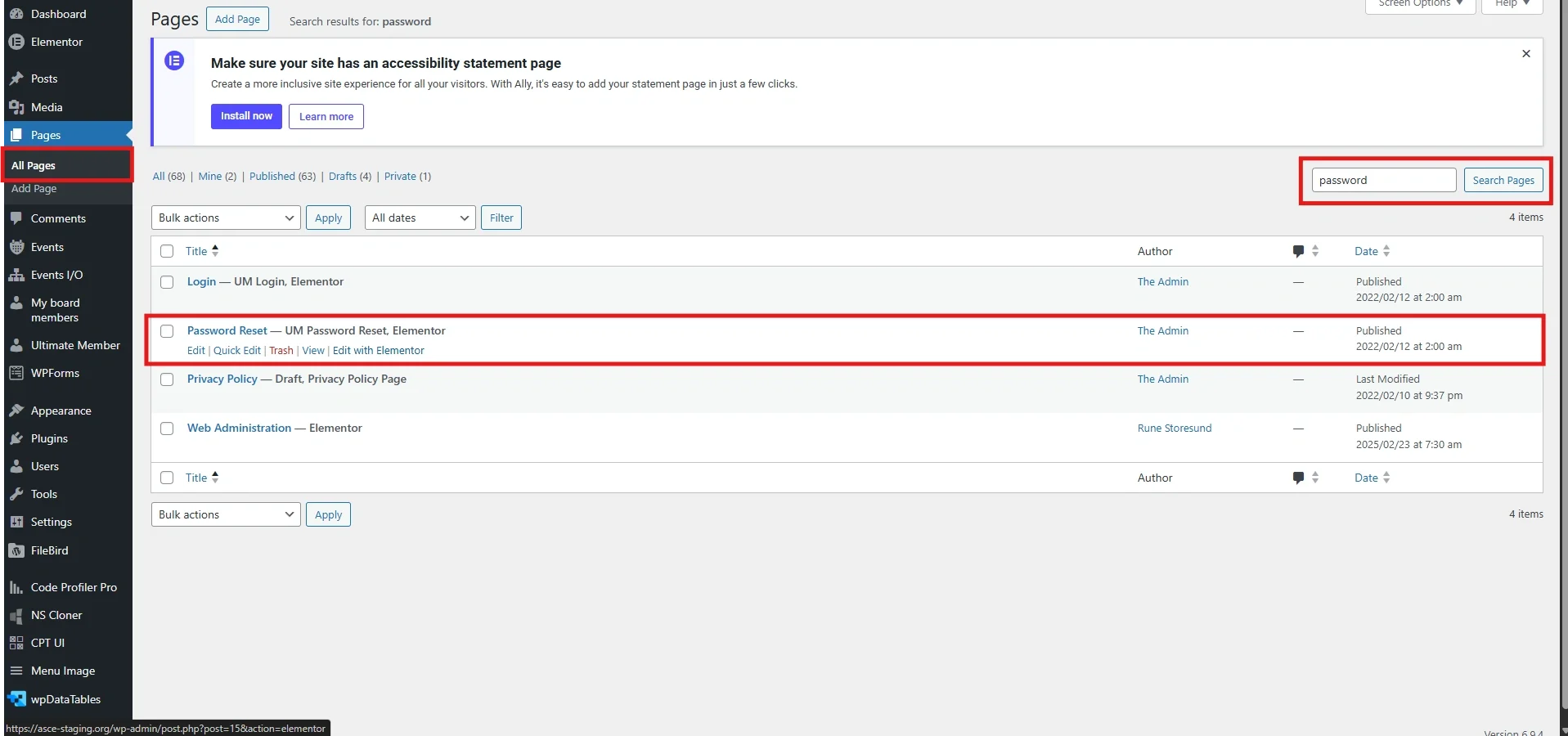
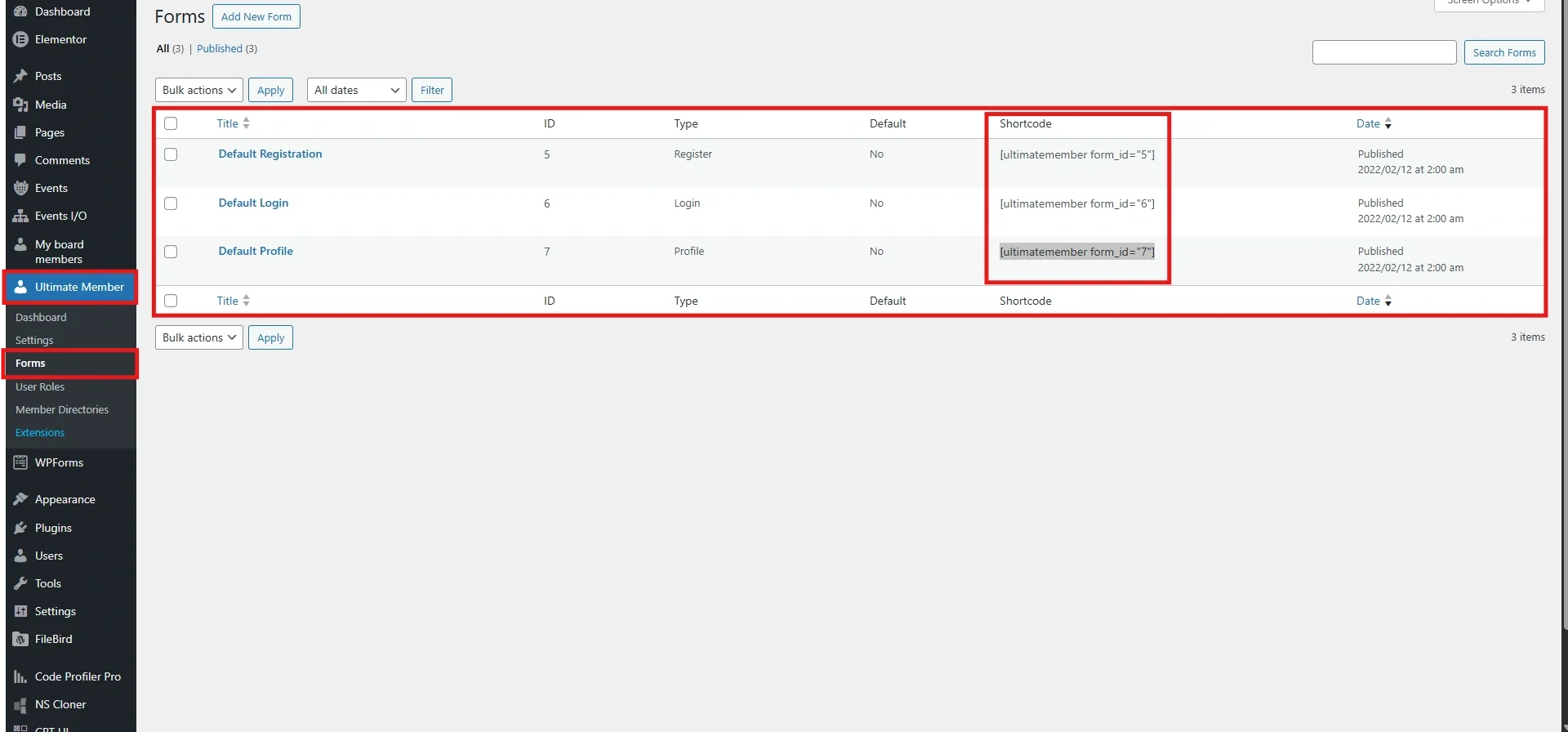
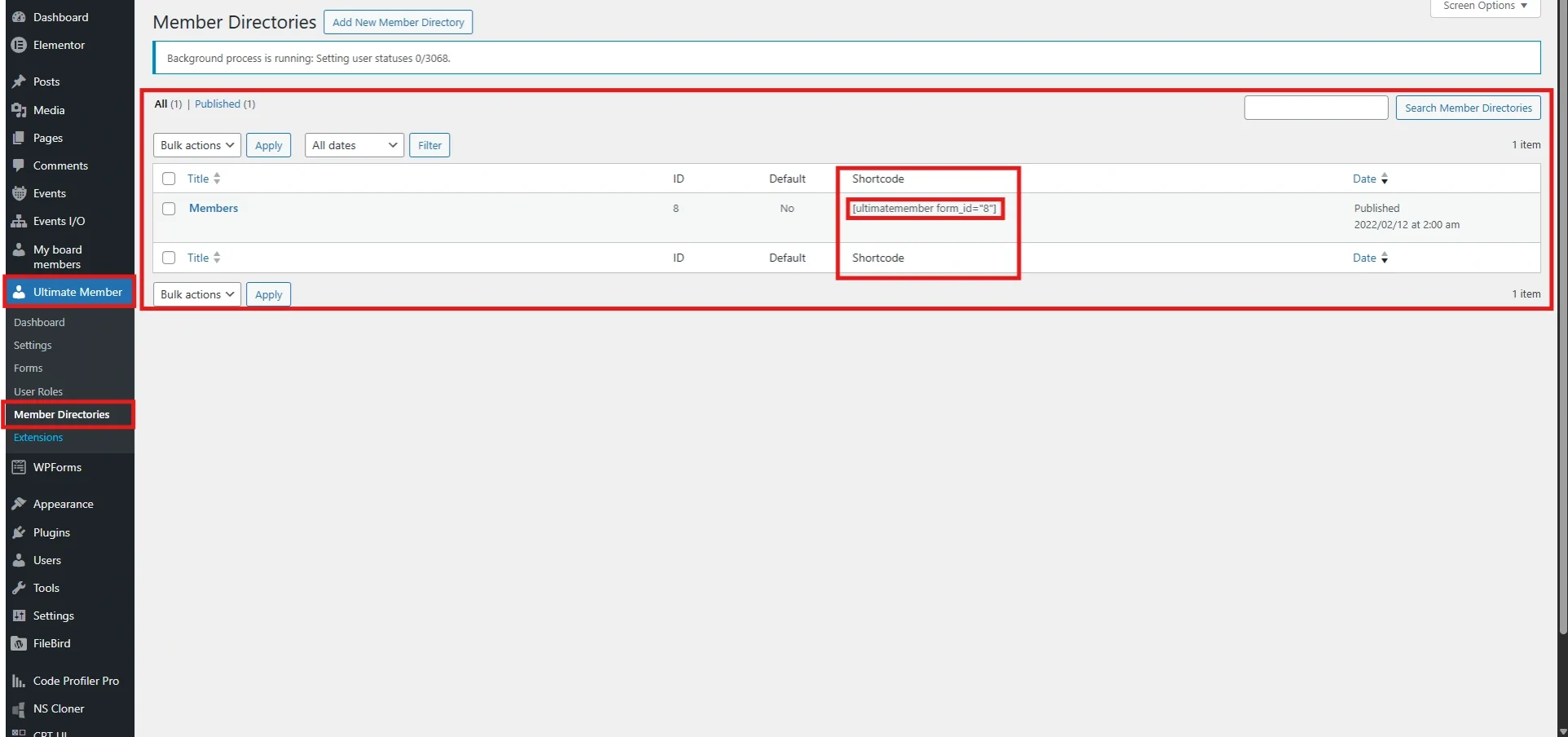
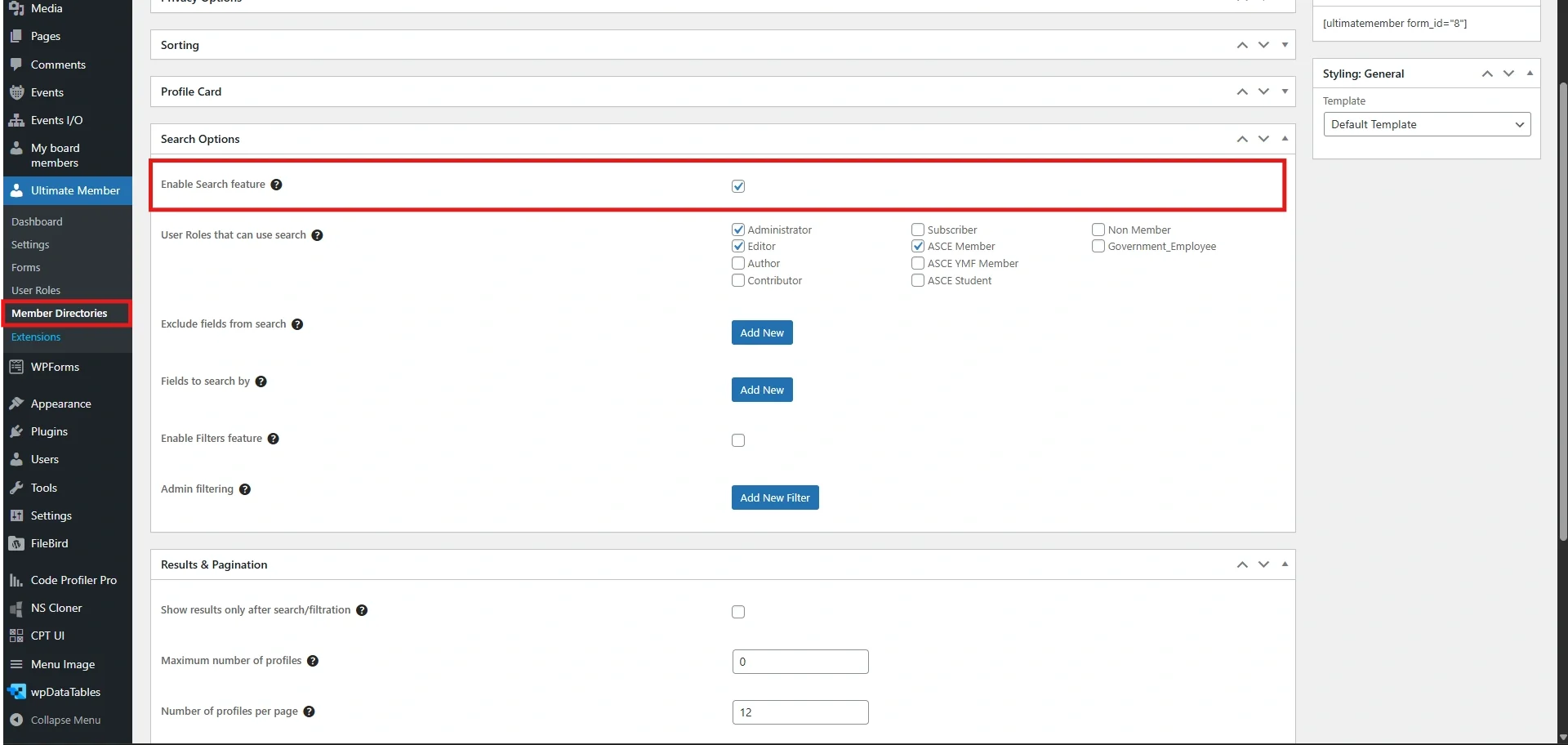
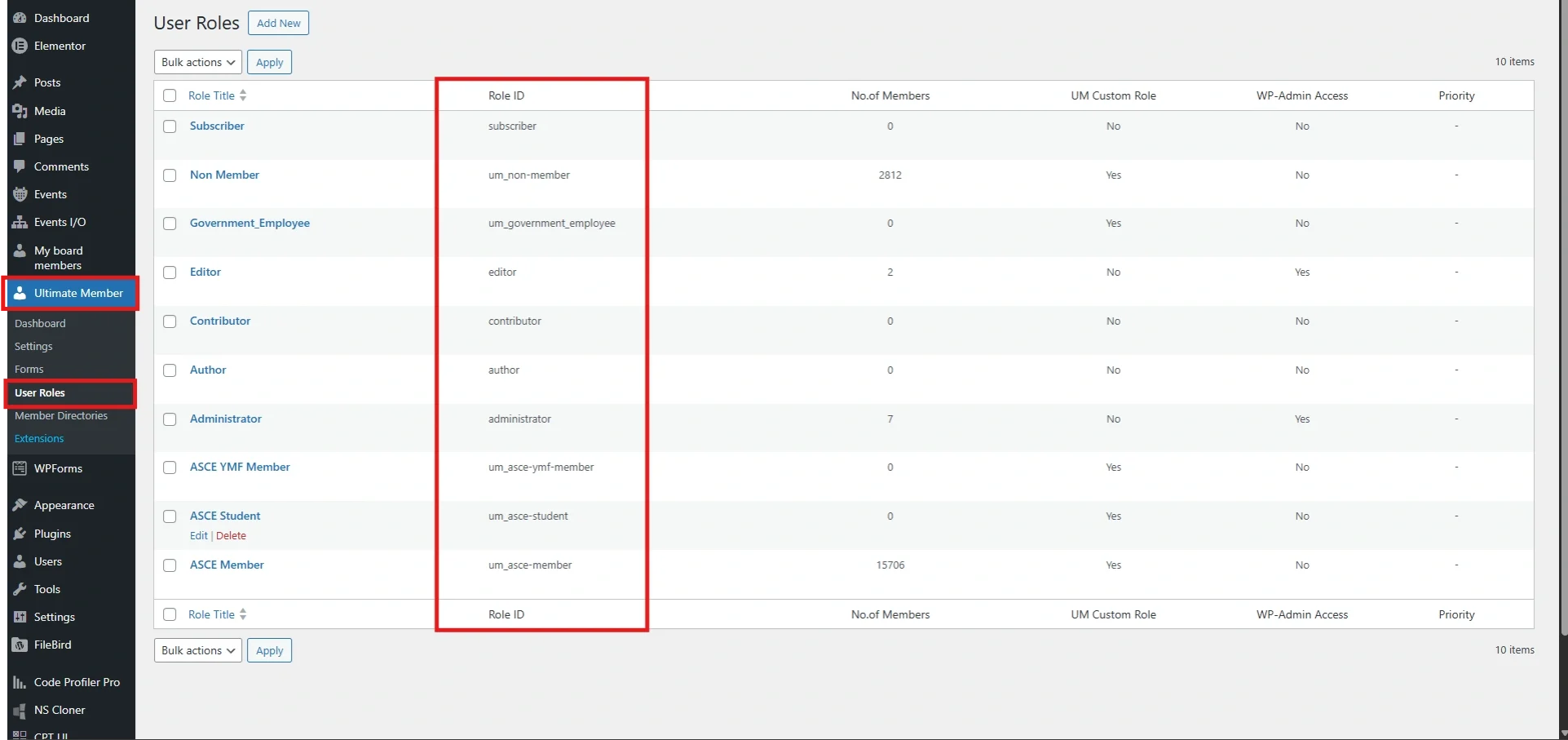
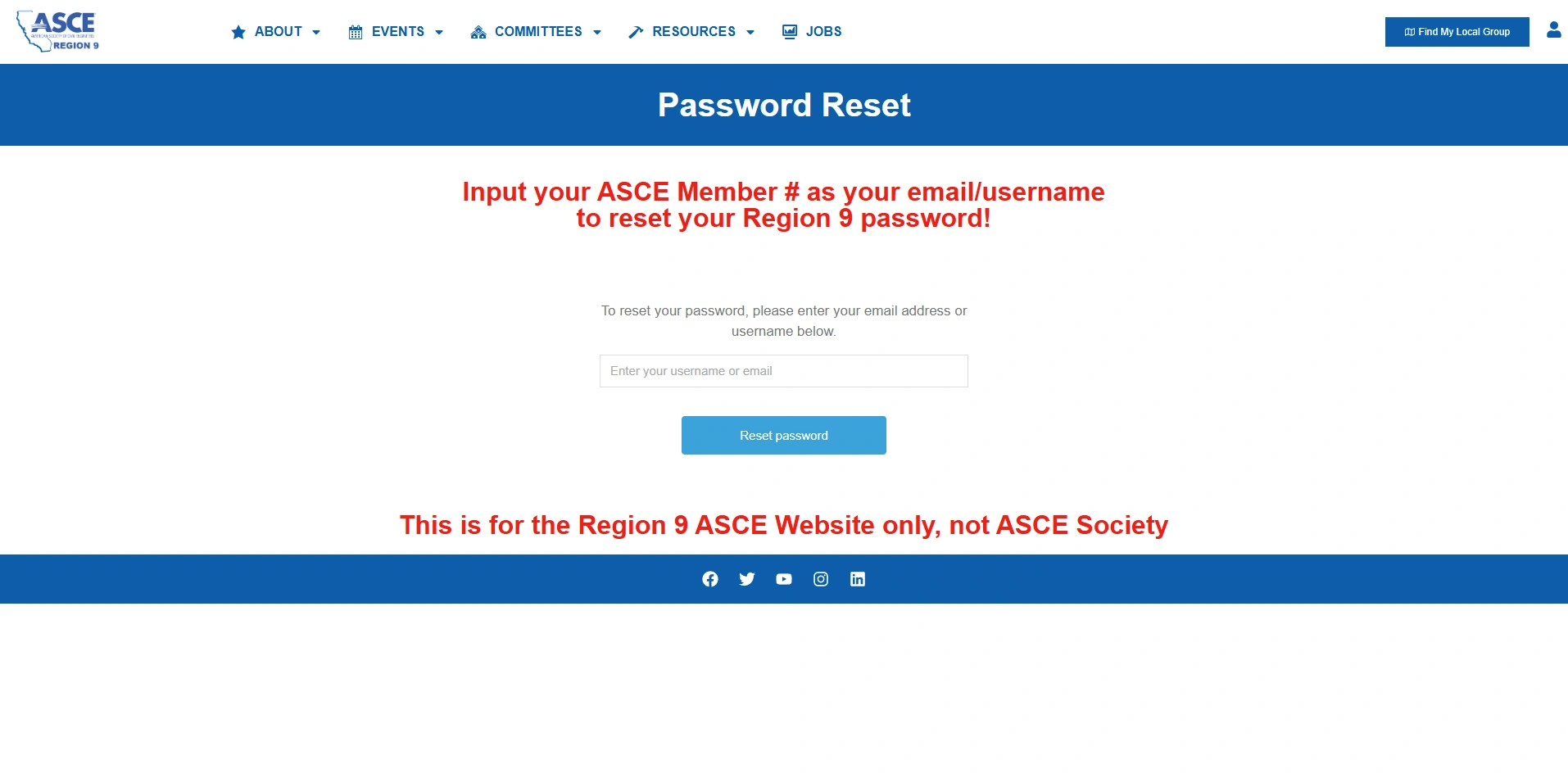
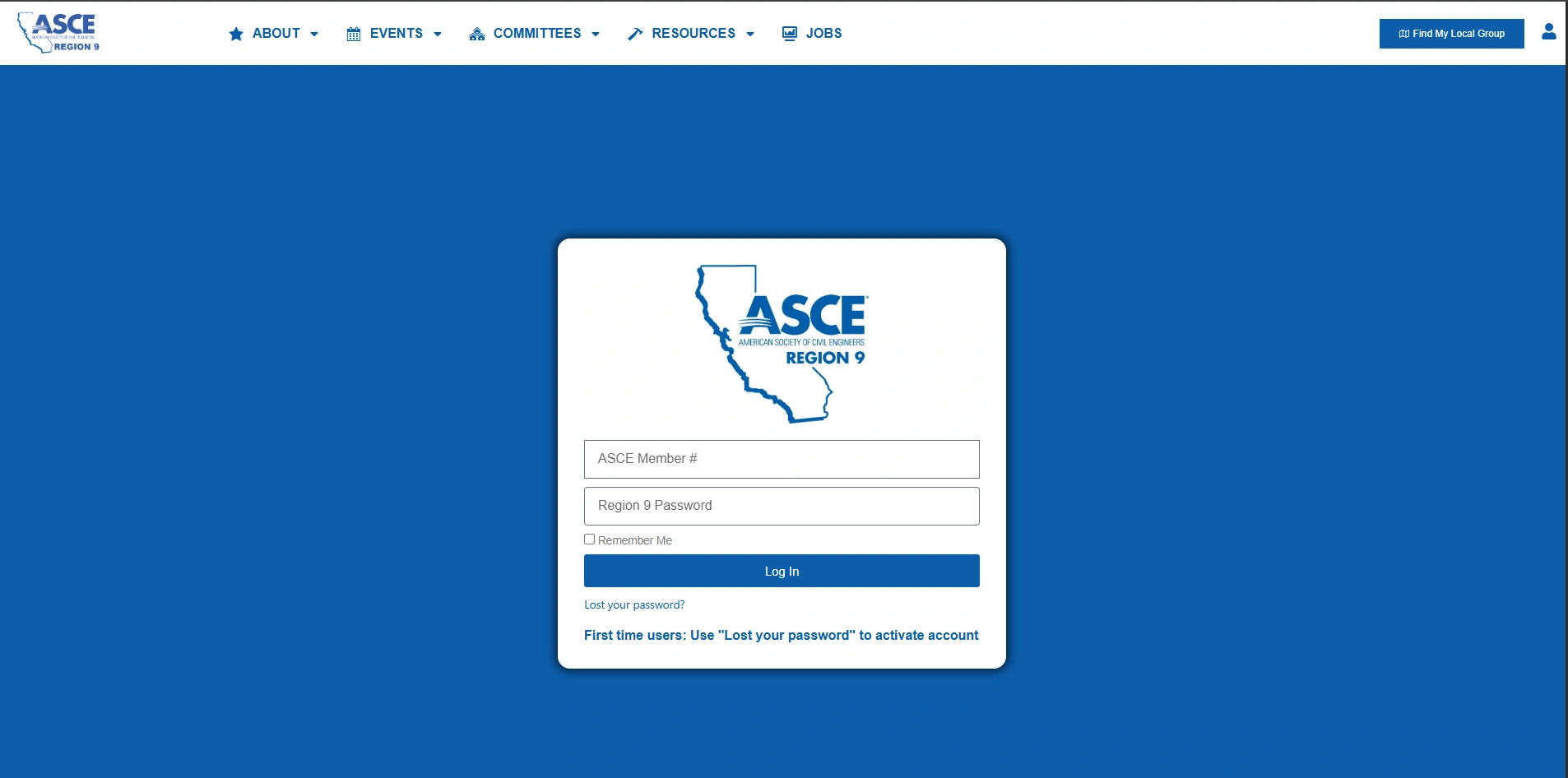
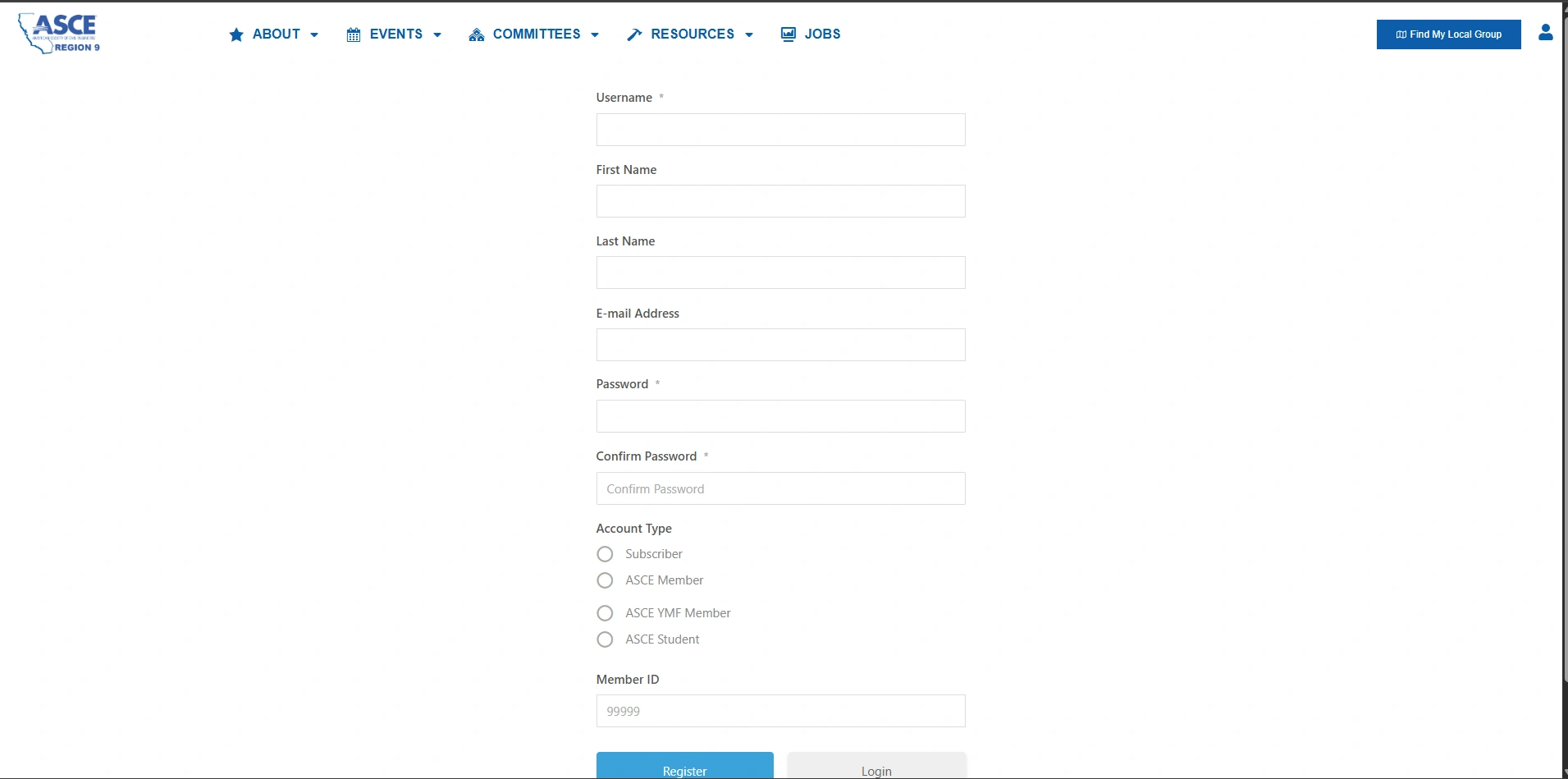
Click each image to enlarge.
Core Plugin Shortcodes
Ultimate Member provides built-in shortcodes that allow you to display key user functionalities such as account management, authentication forms, and member directories directly on your pages. These shortcodes are automatically generated and can be placed inside any page using Elementor’s shortcode widget.
Pages
Use these shortcodes to manage user accounts and authentication:
- Account Page
[ultimatemember_account]– Displays full account dashboard[ultimatemember_account tab="password"]– Opens password tab directly[ultimatemember_account tab="tab id"]– Load specific account tab
- Password Reset
[ultimatemember_password]– Displays password reset form
- Forms (Login, Registration, Profile)
[ultimatemember form_id="6"][ultimatemember form_id="5"][ultimatemember form_id="7"]
Manage via Ultimate Member → Forms
Members Directory
Display user listings using:
-
[ultimatemember_directory id="X"]
Configure in: Ultimate Member → Member Directories
Tip
Always use the Elementor Shortcode Widget when placing Ultimate Member shortcodes. Ensure forms, directories, and user roles are properly configured to avoid empty or broken outputs.
For best results, test each shortcode on the frontend after adding it to your page to confirm it displays correctly and matches your expected layout. Additionally, double-check that the correct form IDs and directory settings are used, especially when working across multiple pages or user roles.
Keeping your shortcode usage consistent across your site will help maintain a clean structure, improve user experience, and make future updates easier to manage.
(6B) Event Manager Pro Shortcodes
1. Events List and Display
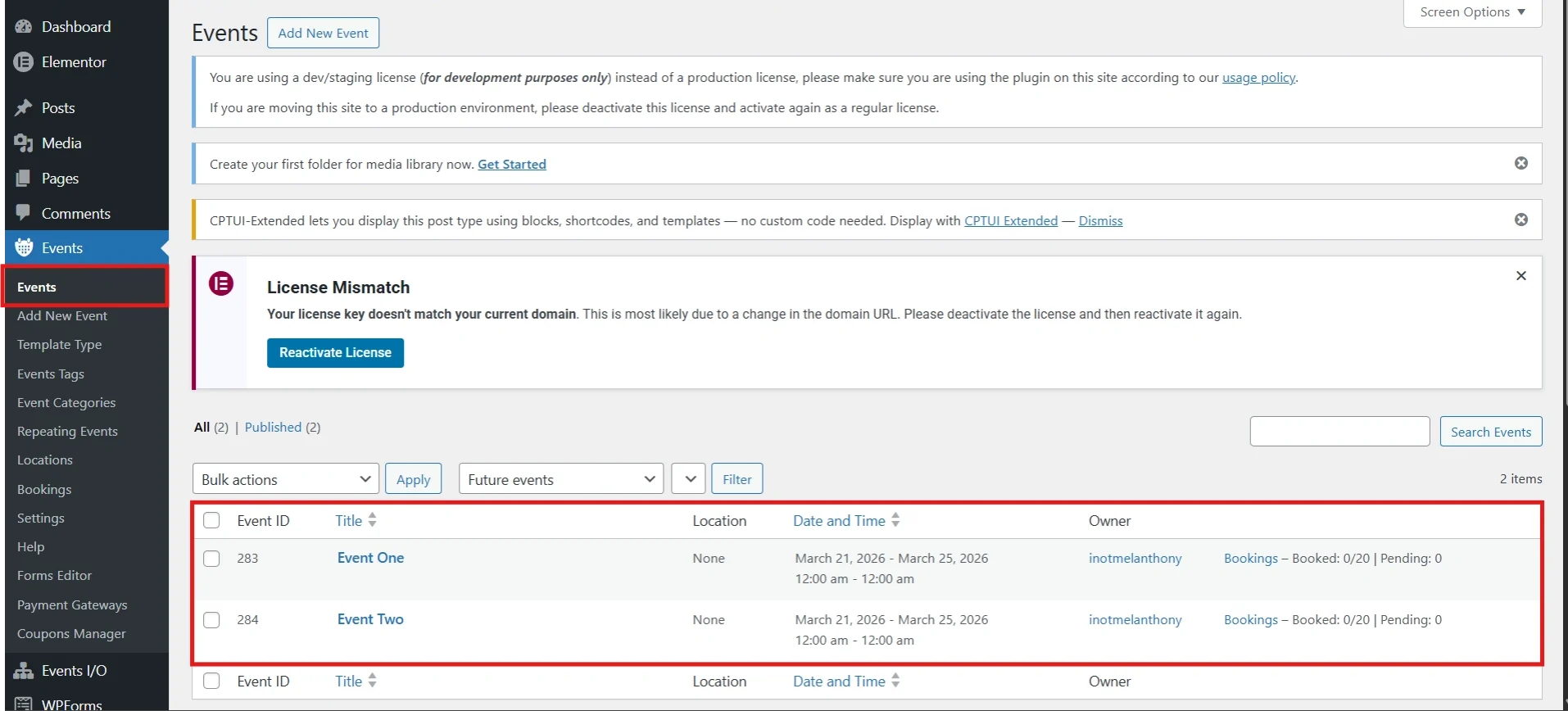
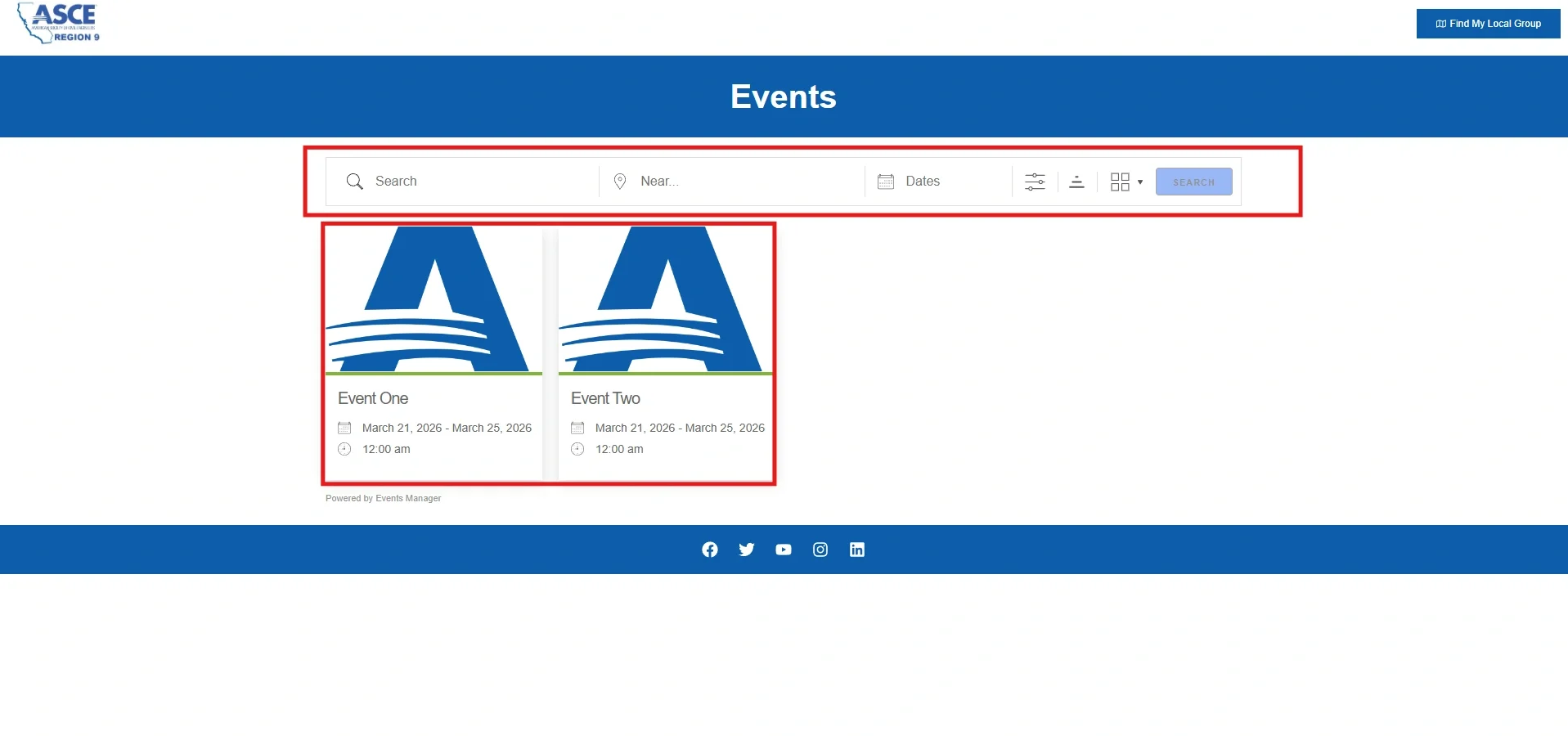
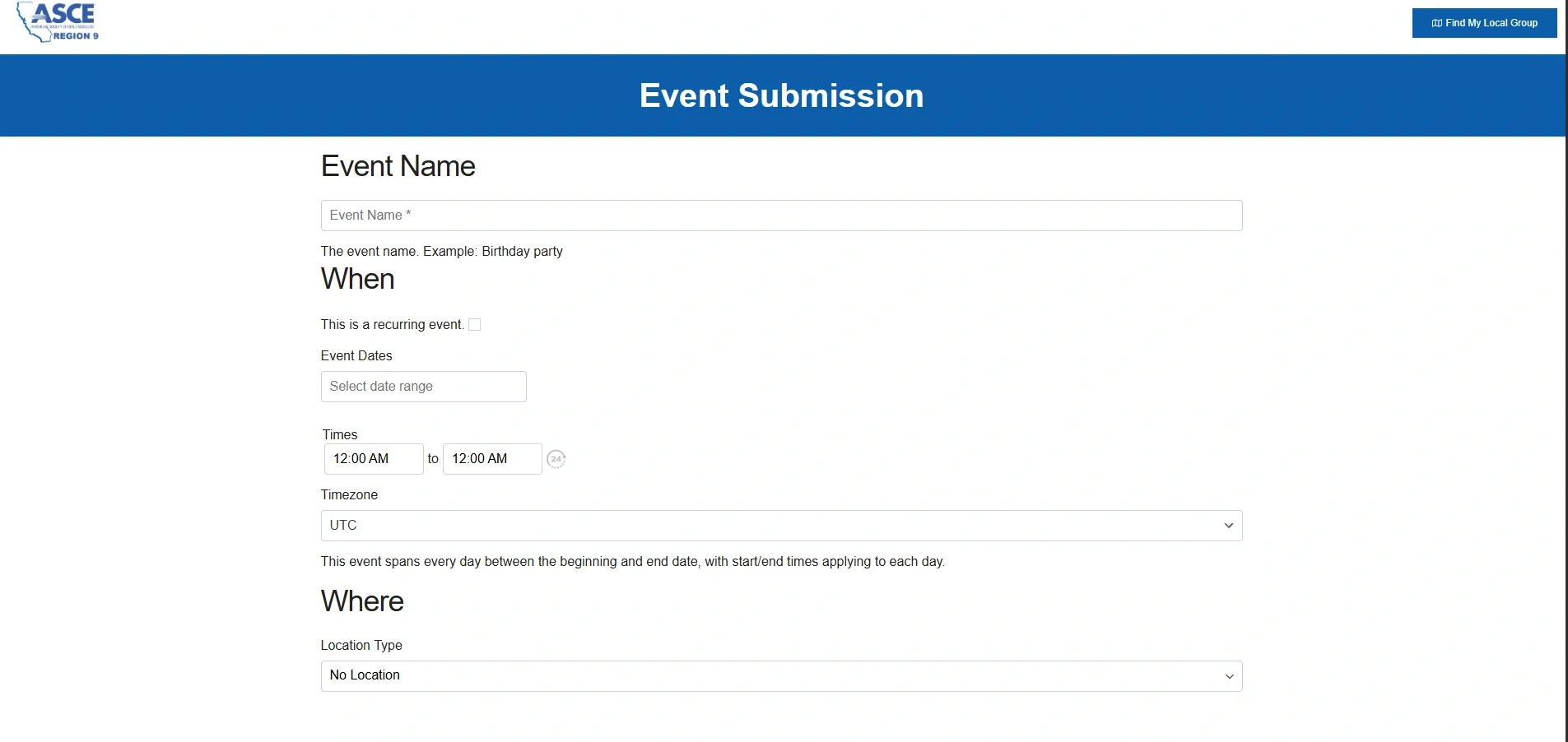
Click each image to enlarge.
Events Shortcodes
These shortcodes allow you to display and manage event-related content dynamically on your website. You can show event listings, individual events, grouped events, and frontend submission forms. They support filters such as date, location, category, and country for flexible display. Using these shortcodes ensures your events are structured, searchable, and easy to manage.
[events_list]--> Displays a list of events
[events_list scope="tomorrow" country="US"]...[/events_list]--> Filtered + custom layout using placeholders
Grouped Events:
[events_list_grouped mode="monthly" country="US"][/events_list_grouped]--> Groups events (daily, weekly, monthly, yearly):
Single Event:
[event post_id="123"]My event is #_EVENTNAME[/event]--> Displays a specific event
Frontend Event Submission:
[event_form]--> Allows users to submit events (frontend)
Search Form:
[event_search_form]--> Displays event search form
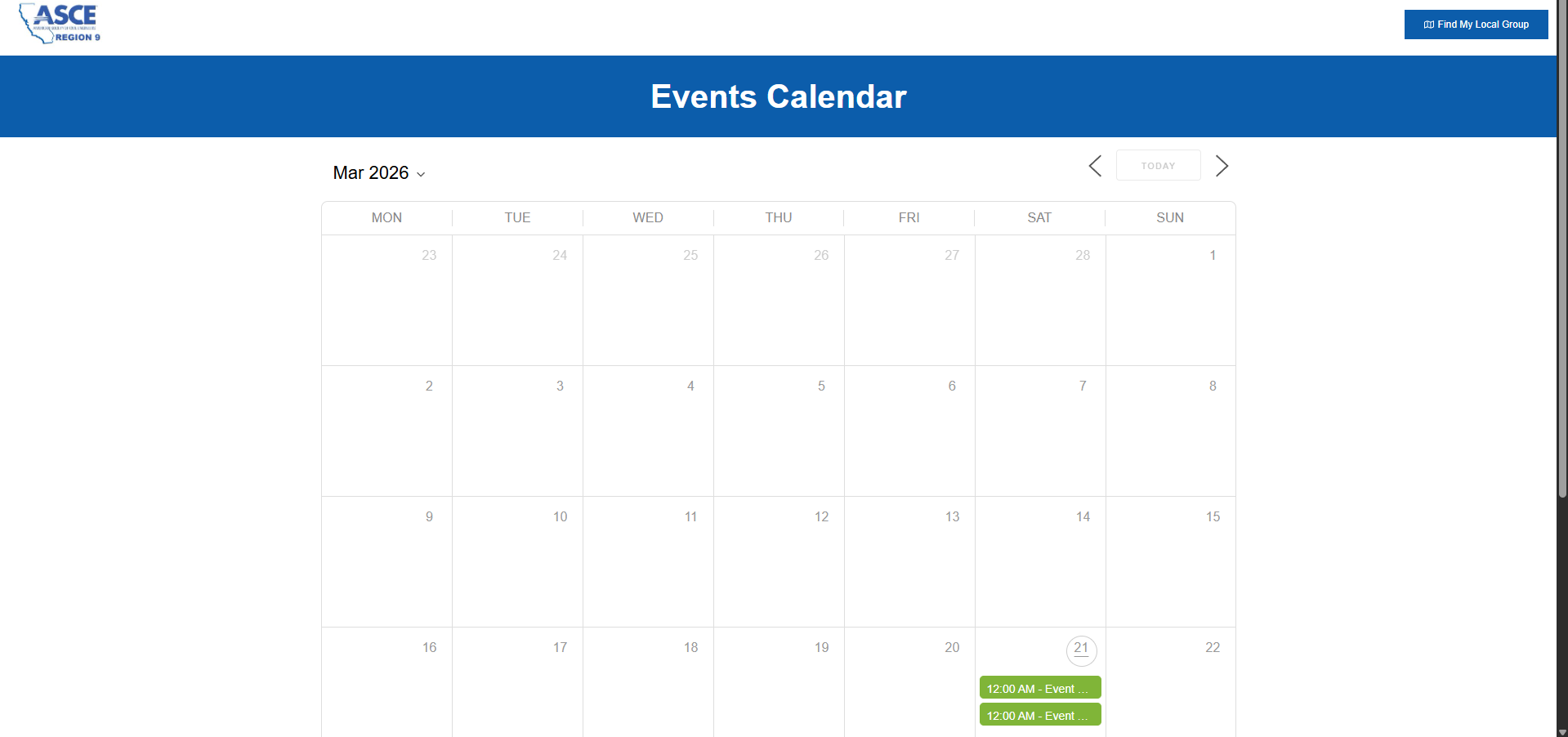
Calendar Shortcodes
Calendar shortcodes provide a visual representation of events over time. You can display events in a monthly or full calendar view. These support filters such as categories, locations, and date ranges. This helps users quickly identify upcoming events.
[events_calendar]Tip: You must be logged in as an Administrator to configure and manage event submission settings in Events Manager. Only allow trusted users or roles to submit events and ensure proper permissions are set to prevent spam or unauthorized entries. Use consistent event settings and moderation (if needed) to maintain accurate, organized, and high-quality event listings.
(6C) Elementor Shortcode Widget
1. Using the Shortcode Widget in Elementor
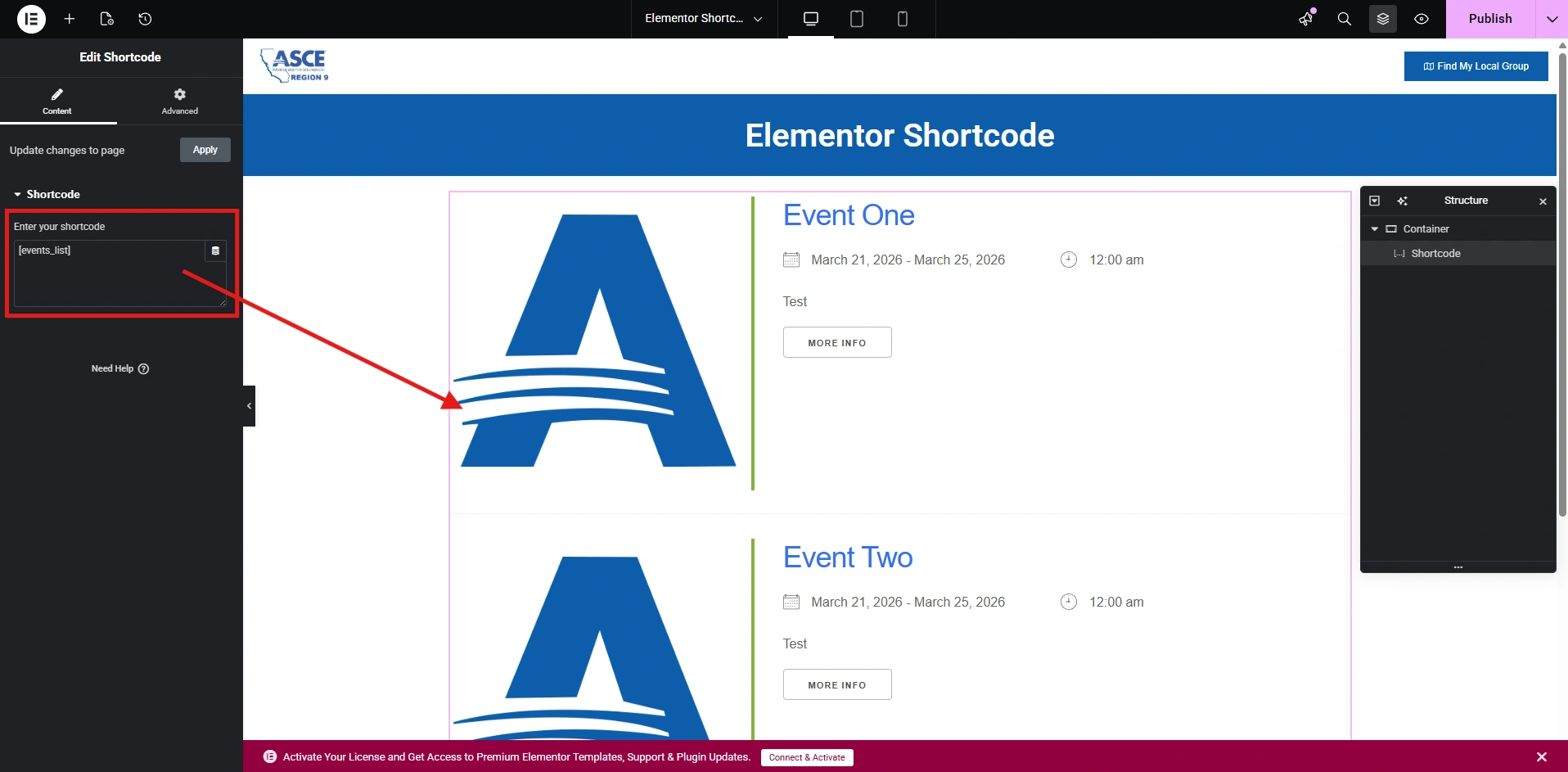
Click each image to enlarge.
Using the Shortcode Widget in Elementor
The Shortcode widget in Elementor allows you to embed dynamic content from plugins such as Ultimate Member, Events Manager, WPForms, and Postie directly into your page. Simply drag the Shortcode widget into your layout, paste your shortcode, and Elementor will render the output automatically on the frontend. This is useful for displaying forms, user profiles, event lists, or any plugin-generated content without custom coding. Always ensure the shortcode is correctly configured in its respective plugin before embedding it. Proper placement of shortcodes helps maintain a clean layout and ensures all dynamic content displays correctly across devices.
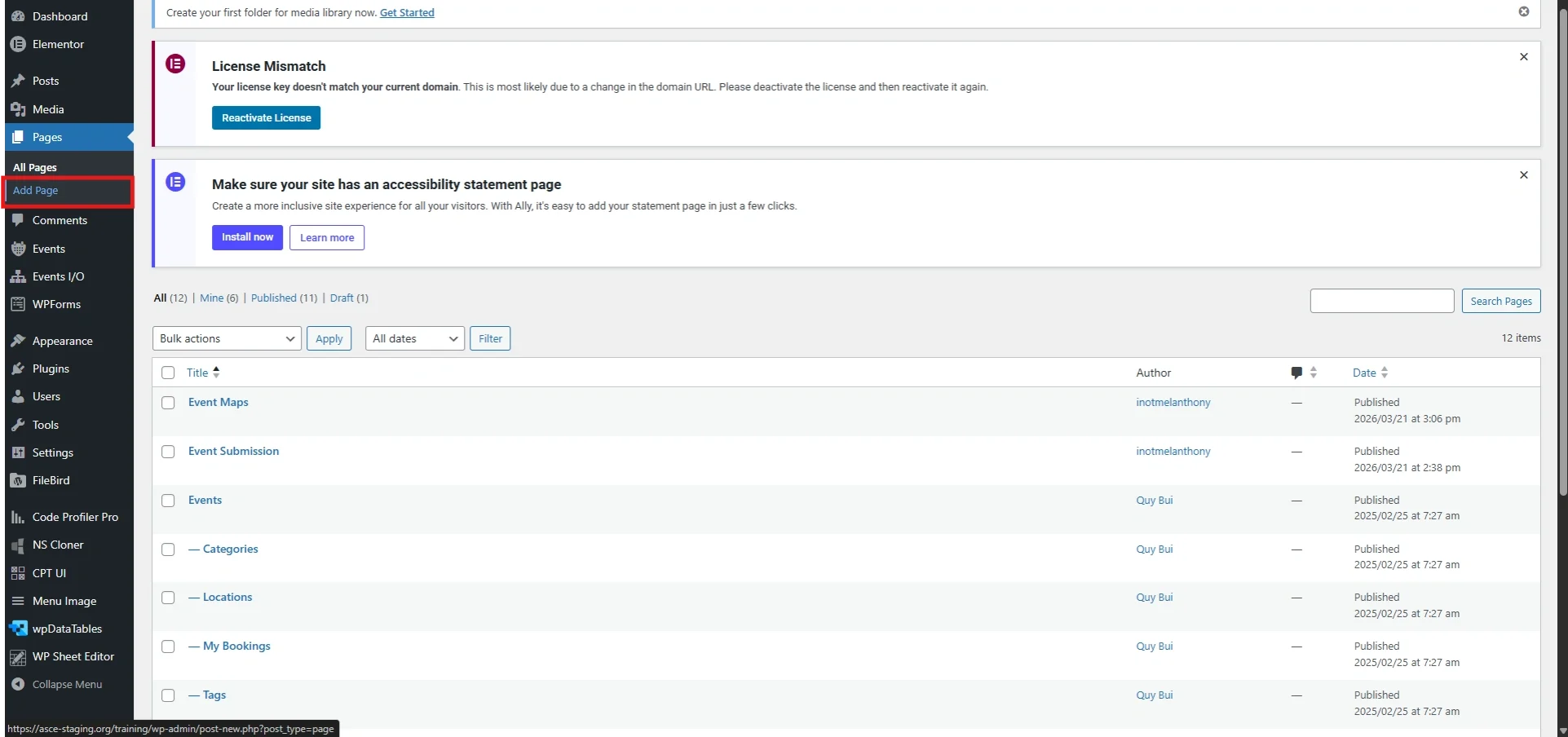
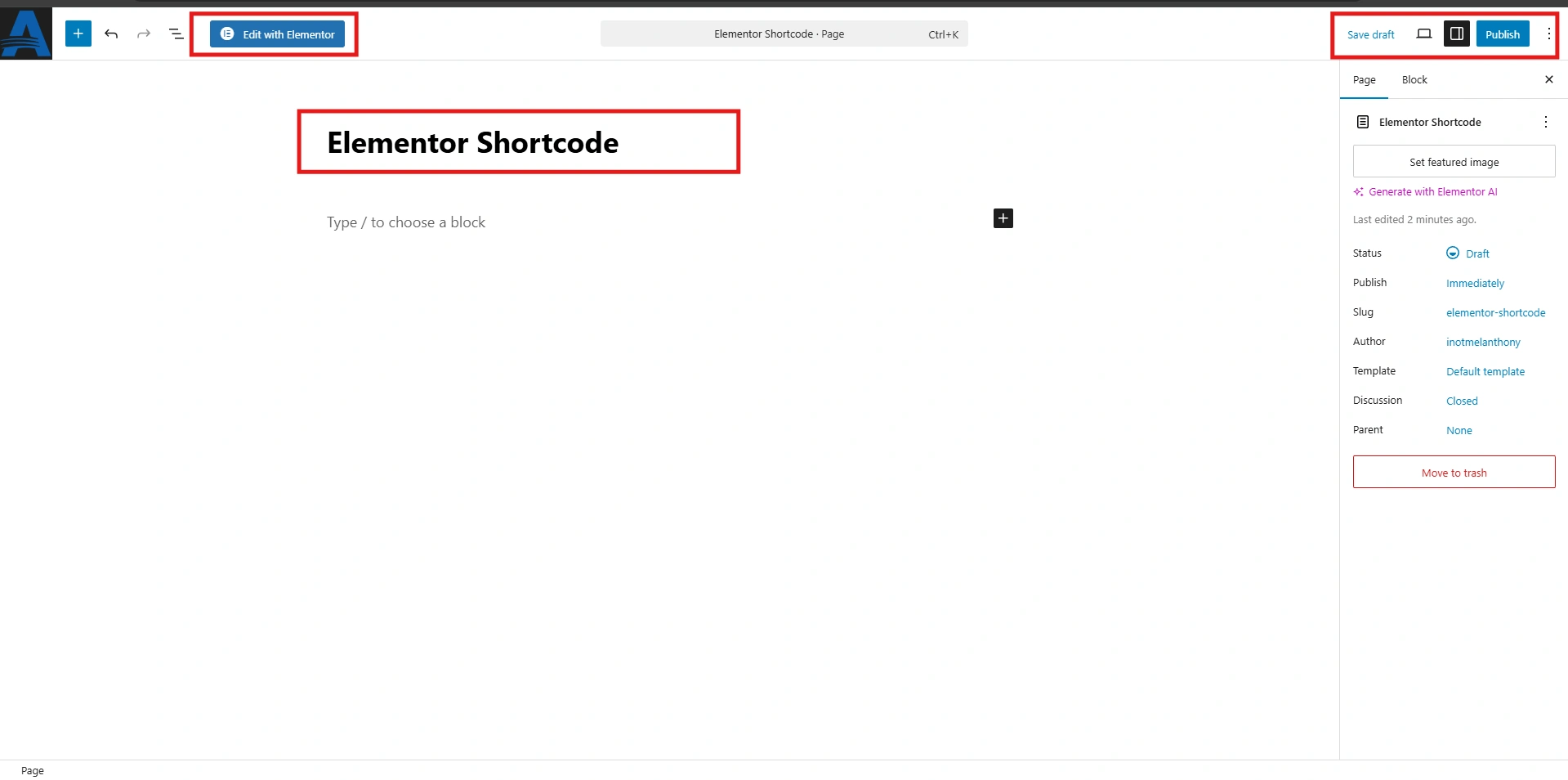
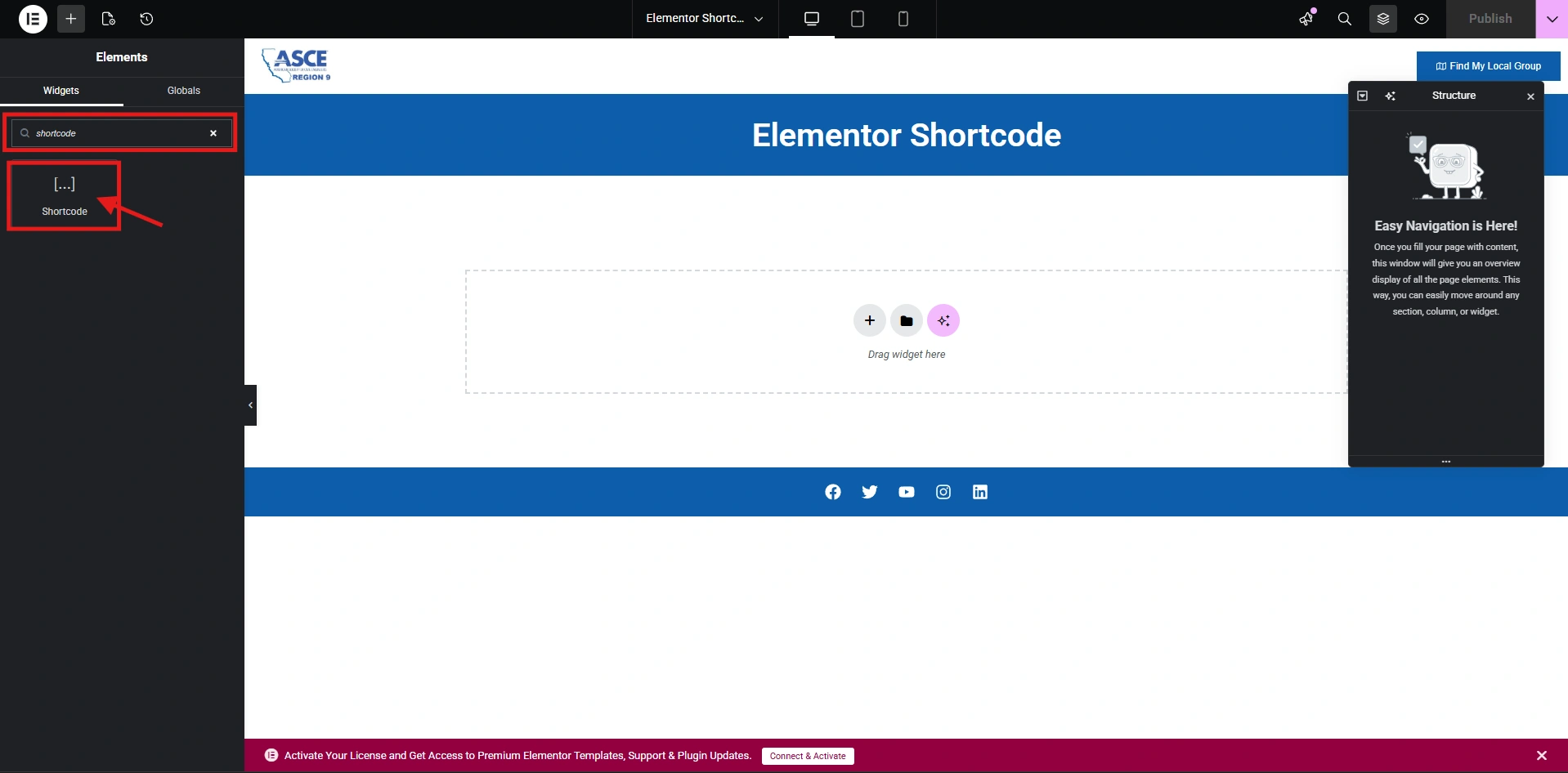
Steps to use the Shortcode Widget:
- Add page -> Edit with Elementor
- Drag the shortcode widget into your section
- Paste your shortcode (Example:
[events_list]) - Click Update / Publish
- Preview the page to confirm it renders correctly
---> You can also duplicate the widget across sections to reuse the same shortcode in different layouts or pages.
Tip: You must be logged in as an Administrator to add and manage shortcodes in Elementor. Always use the Shortcode widget instead of text widgets to ensure proper rendering. Test each shortcode on the frontend after adding it to confirm it displays correctly and matches your expected layout. If a shortcode does not display properly, verify that the related plugin is active and configured correctly.