
Quick Reference Guide for Postie Configuration
OVERVIEW - Setting up Postie
To properly configure Postie, there are six (6) key components that must be set up. These elements work together to automate content creation via email—from receiving messages to processing, formatting, and publishing posts within WordPress.
(5A) Configure Email Account and Mail Server
1 - Email Account & Mail Server Setup
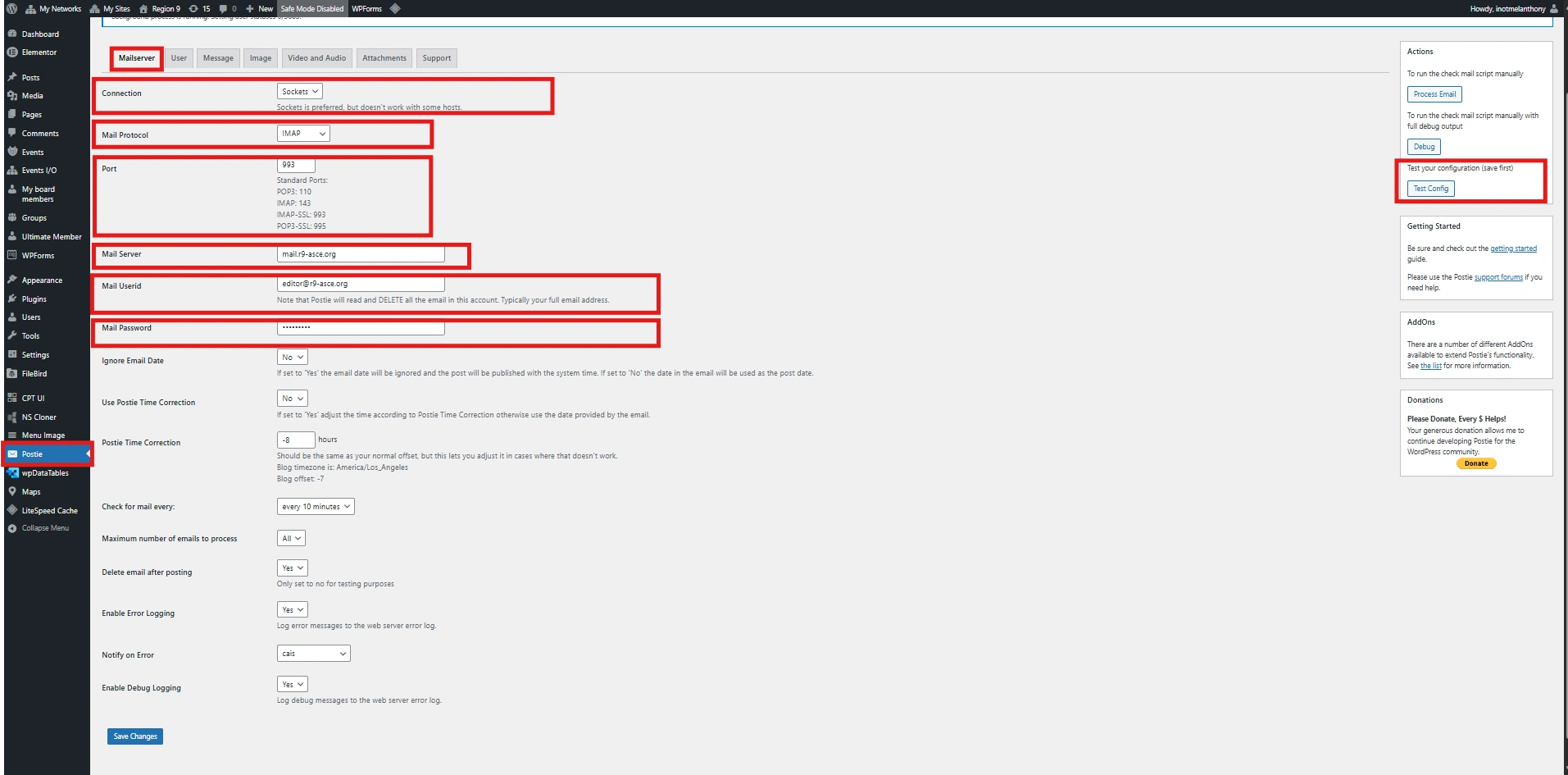
Click each image to enlarge.
Email Account & Mail Server Setup
This section connects your dedicated email account to Postie, allowing it to automatically retrieve incoming messages and convert them into WordPress posts. Start by preparing an email (e.g., submissions@yoursite.com) with IMAP enabled and secure credentials such as an App Password. Then configure the connection under Postie → Settings → Mailserver by entering the correct protocol, server, port, username, and password. Ensure SSL is enabled and always test the configuration to confirm that the connection is working properly.
Tip: You must be logged in as an Administrator to configure and manage Postie settings. Ensure your email account uses IMAP with secure credentials (such as an App Password) for reliable access. Always test the configuration to confirm the connection is working properly before using Postie.
(5B) Configure User
1. User Configuration
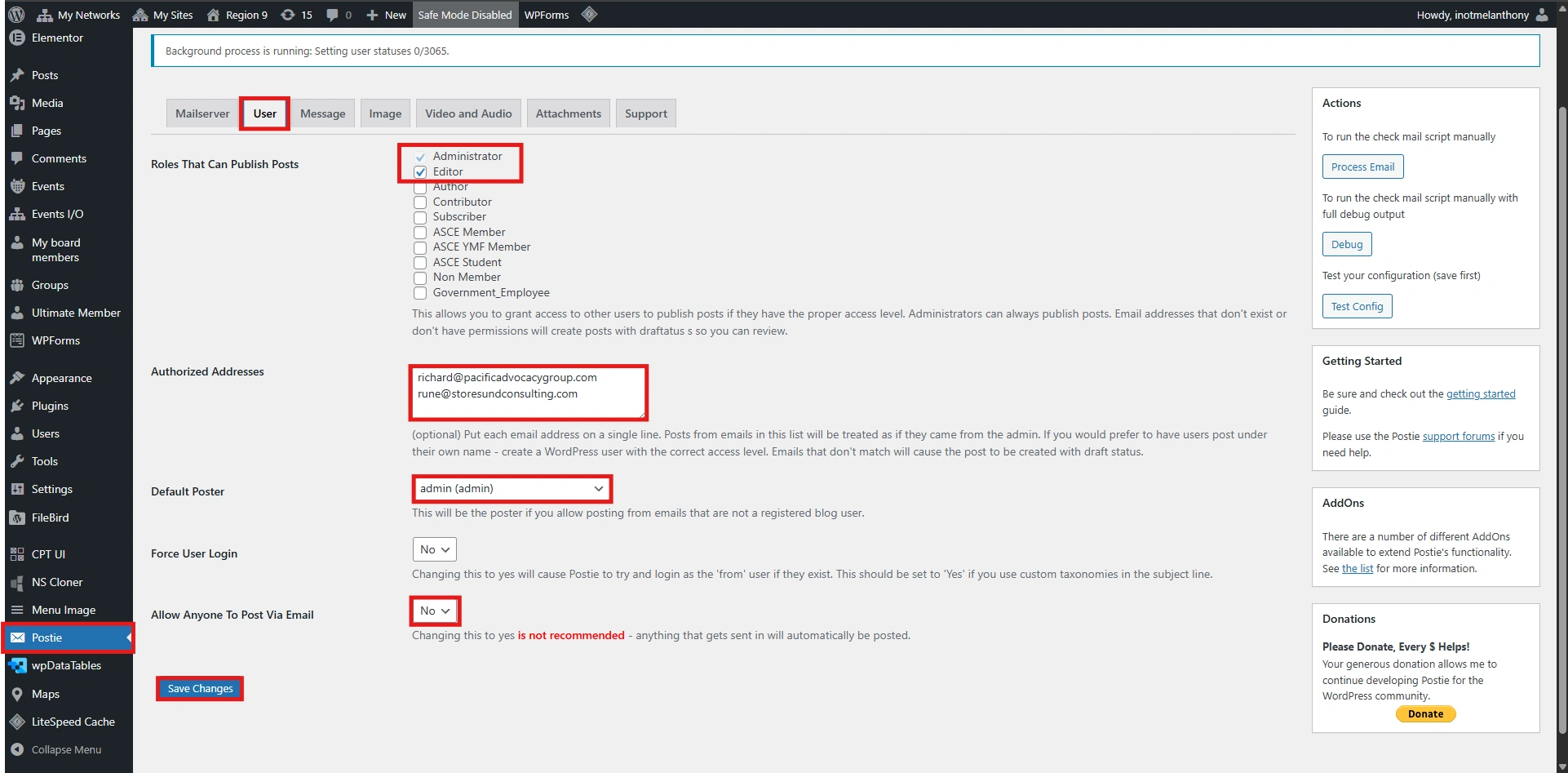
Click each image to enlarge.
User Configuration
This section allows you to control who can create and publish posts via email using Postie. You can assign roles (e.g., Administrator, Editor), define authorized email addresses, and set a default poster for unrecognized senders. These settings help ensure proper permissions, security, and consistent ownership of content created through email.
Tip: You must be logged in as an Administrator to configure and manage user settings in Postie. Only allow trusted email addresses and assign appropriate roles to ensure secure and controlled post creation via email. Use a default poster and consistent permissions to maintain proper ownership and organization of submitted content.
(5C) Configure Message
1. Message Configuration
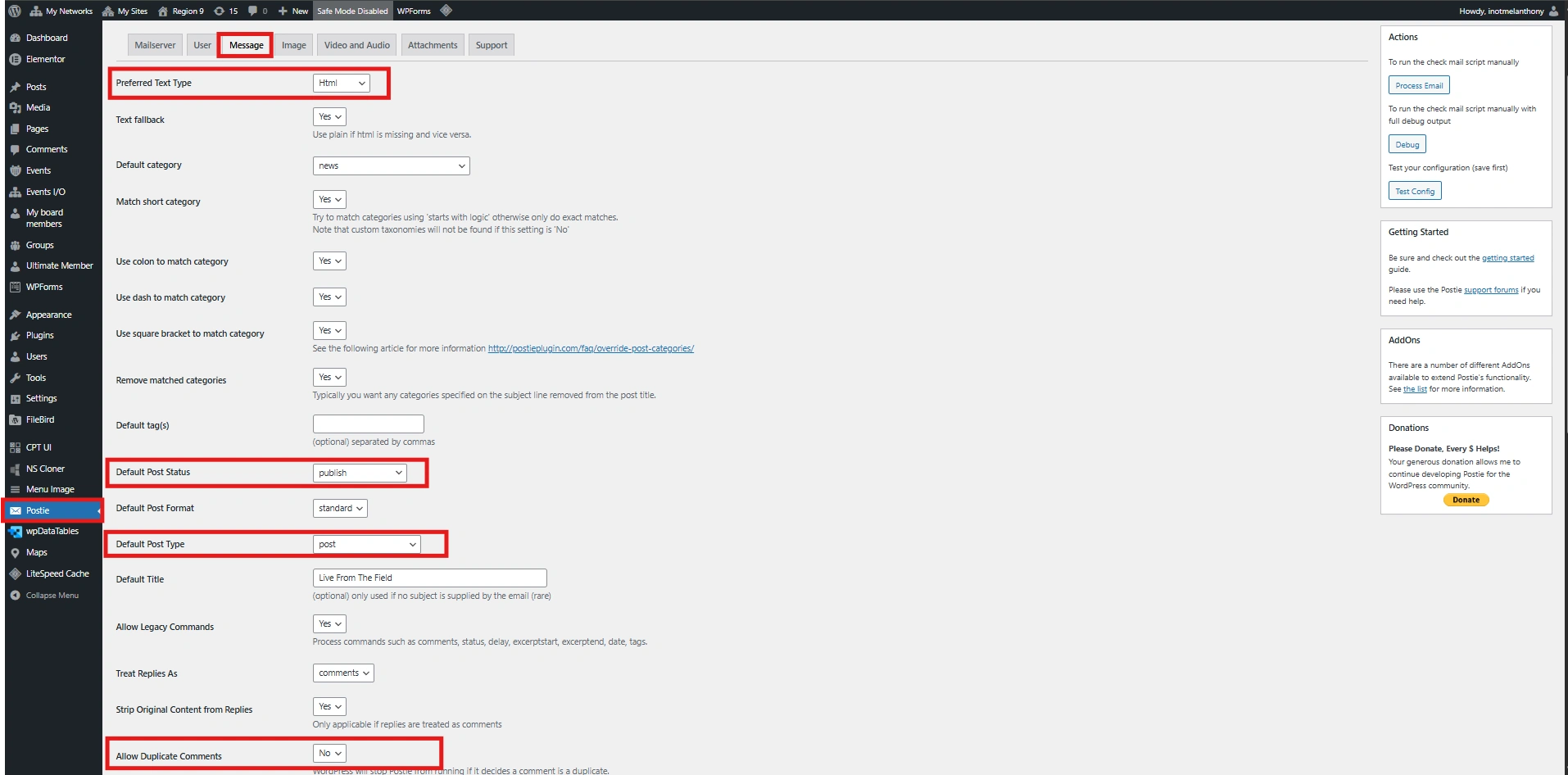
2. Notifications
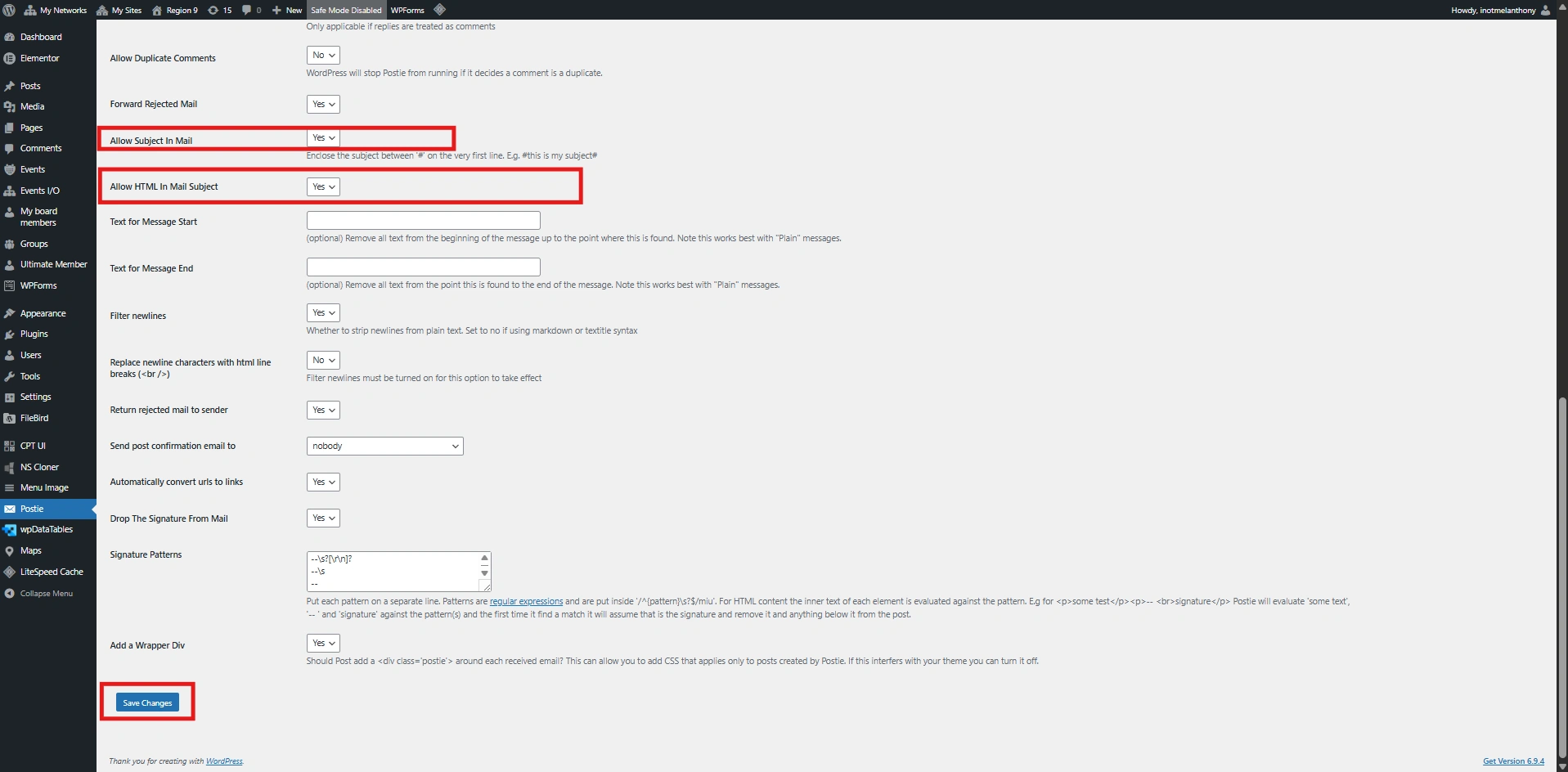
Click each image to enlarge.
Message Configuration
This section controls how email content is processed and converted into WordPress posts. You can define the preferred text format (HTML or Plain Text), set default post status and post type, and control how subjects, categories, and content are interpreted. Additional options such as allowing HTML in subject, filtering content, and removing signatures help ensure cleaner and more structured post output. These settings ensure that emails are properly formatted and displayed consistently on your website.
Postie Settings Overview
This section covers the essential configuration options available in Postie, including Mailserver, User, Message, Image, Video/Audio, and Attachments. These settings allow you to control how emails are received, processed, and converted into WordPress posts. Proper configuration ensures secure email handling, accurate content formatting, and reliable post creation. Always review these settings before running Postie to ensure everything functions correctly and as expected.
Tip: You must be logged in as an Administrator to access and modify Postie settings. Make sure all configurations such as mail server, user permissions, and message handling are properly set before processing emails. Test your configuration to verify that emails are successfully retrieved and converted into posts. This helps prevent issues and ensures a smooth and secure content automation process.
(5D) Configure Image
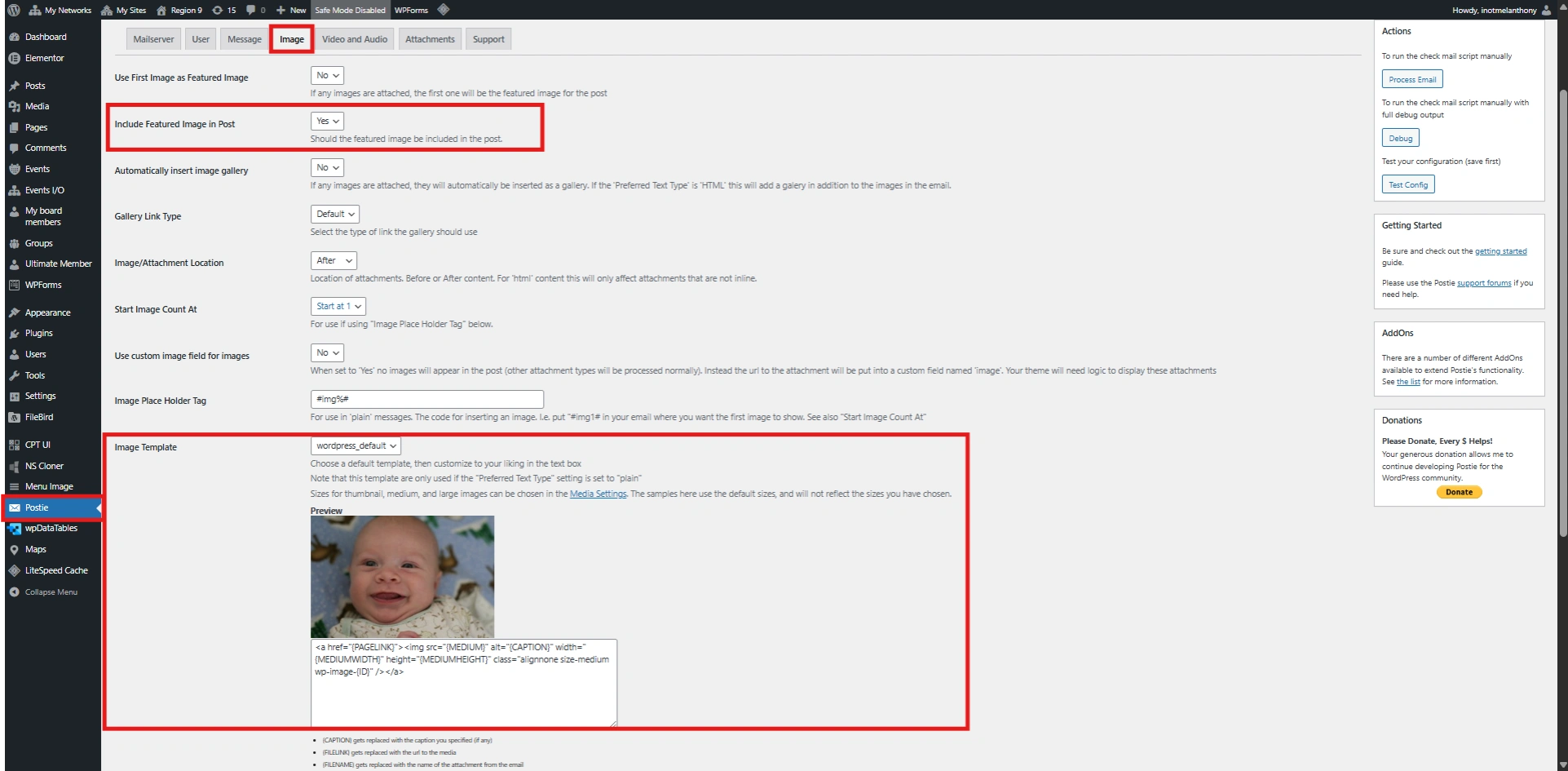
1. Image Configuration
Click each image to enlarge.
Image Configuration
This section controls how images from emails are handled and displayed in WordPress posts. You can set the first attached image as the featured image, include it within the post content, and automatically generate image galleries if multiple images are present. Additional options such as image placement, placeholder tags, and templates allow you to customize how images appear within the post layout. Proper configuration ensures images are displayed consistently and enhances the visual quality of posts created via email.
Tip
Enable “Use First Image as Featured Image” to automatically assign a thumbnail for better post presentation. Use Image Templates to control how images are displayed and maintain a consistent layout across posts. Always test with sample emails containing images to ensure proper formatting and placement.
(5E)Configure Video/Audio
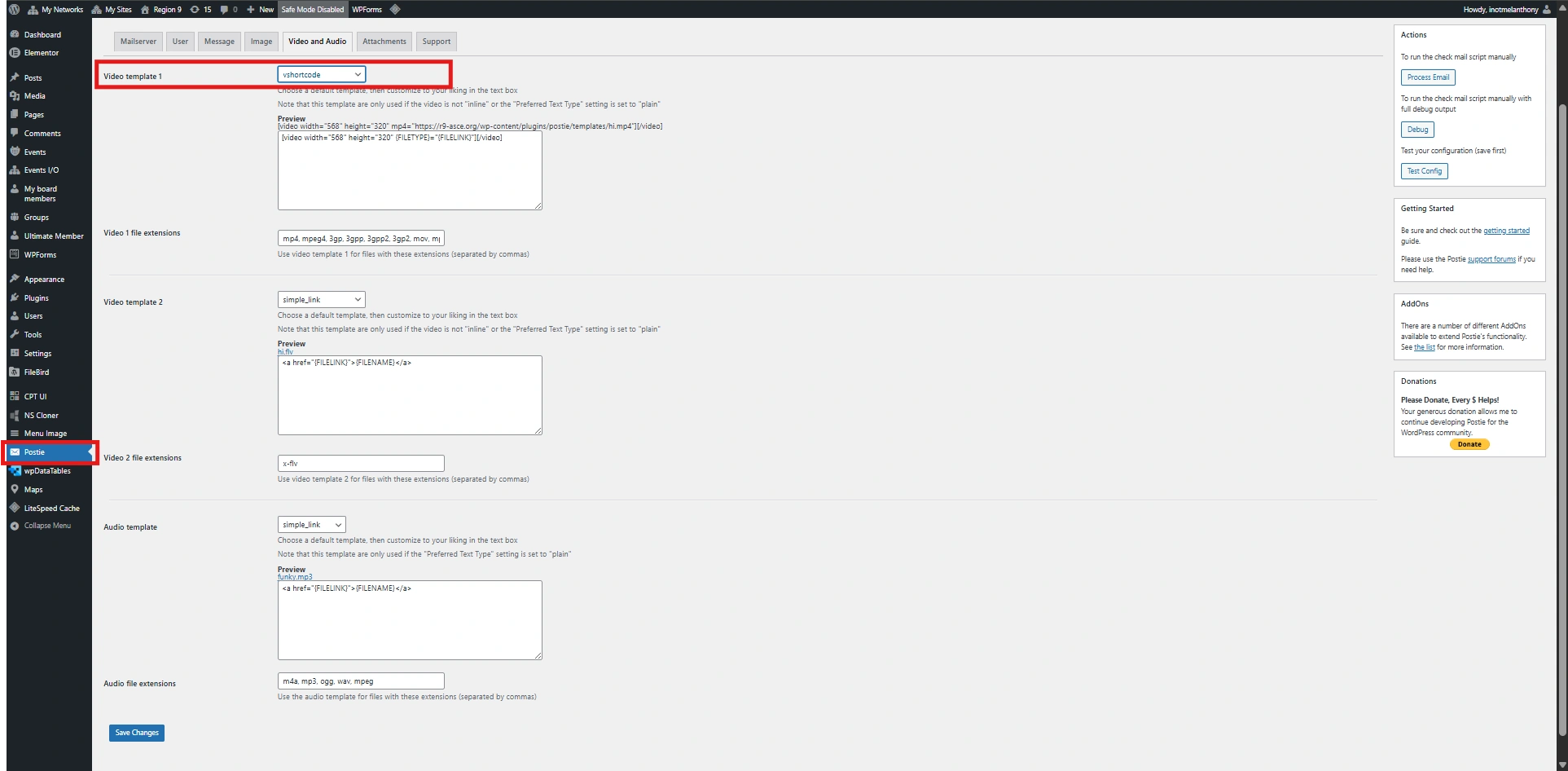
1.Video & Audio Configuration
Click each image to enlarge.
Video & Audio Configuration
This section controls how video and audio files from emails are processed and displayed in WordPress posts. You can define templates for embedding or linking media files, as well as specify supported file extensions for proper handling. Postie allows you to display videos using shortcodes or simple links, depending on your preferred format and theme compatibility. Proper configuration ensures multimedia content is embedded correctly and enhances the overall presentation of posts created via email.
Tip
Use the shortcode template for videos if your theme supports embedded players for a better user experience. Ensure file extensions are correctly defined so Postie can properly recognize and process media files. Always test with sample video and audio attachments to confirm they display as expected on your site.
(5F) Attachments
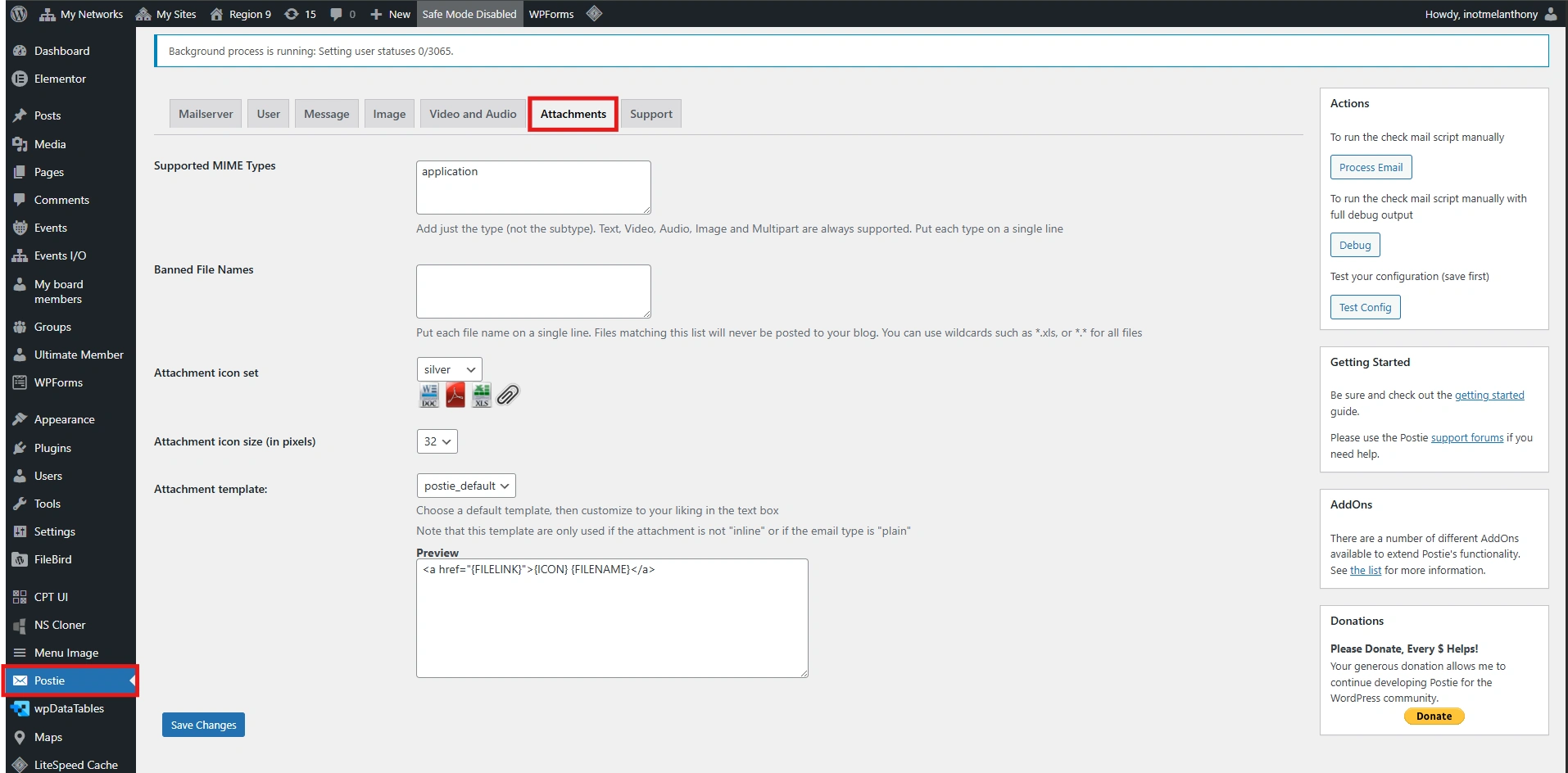
1. Attachments Configuration
Attachments Configuration
This section controls how file attachments from emails are processed and displayed in WordPress posts. You can define supported MIME types, restrict specific file names, and customize how attachments appear using templates and icon settings. Postie allows attachments to be displayed as downloadable links with icons, helping users easily access files included in email submissions. Proper configuration ensures secure handling and organized presentation of documents and media within your posts.
Tip
Only allow necessary file types in Supported MIME Types to improve security and prevent unwanted uploads. Use Banned File Names to block specific file patterns if needed. Always test with sample attachments to ensure files are displayed correctly and safely.